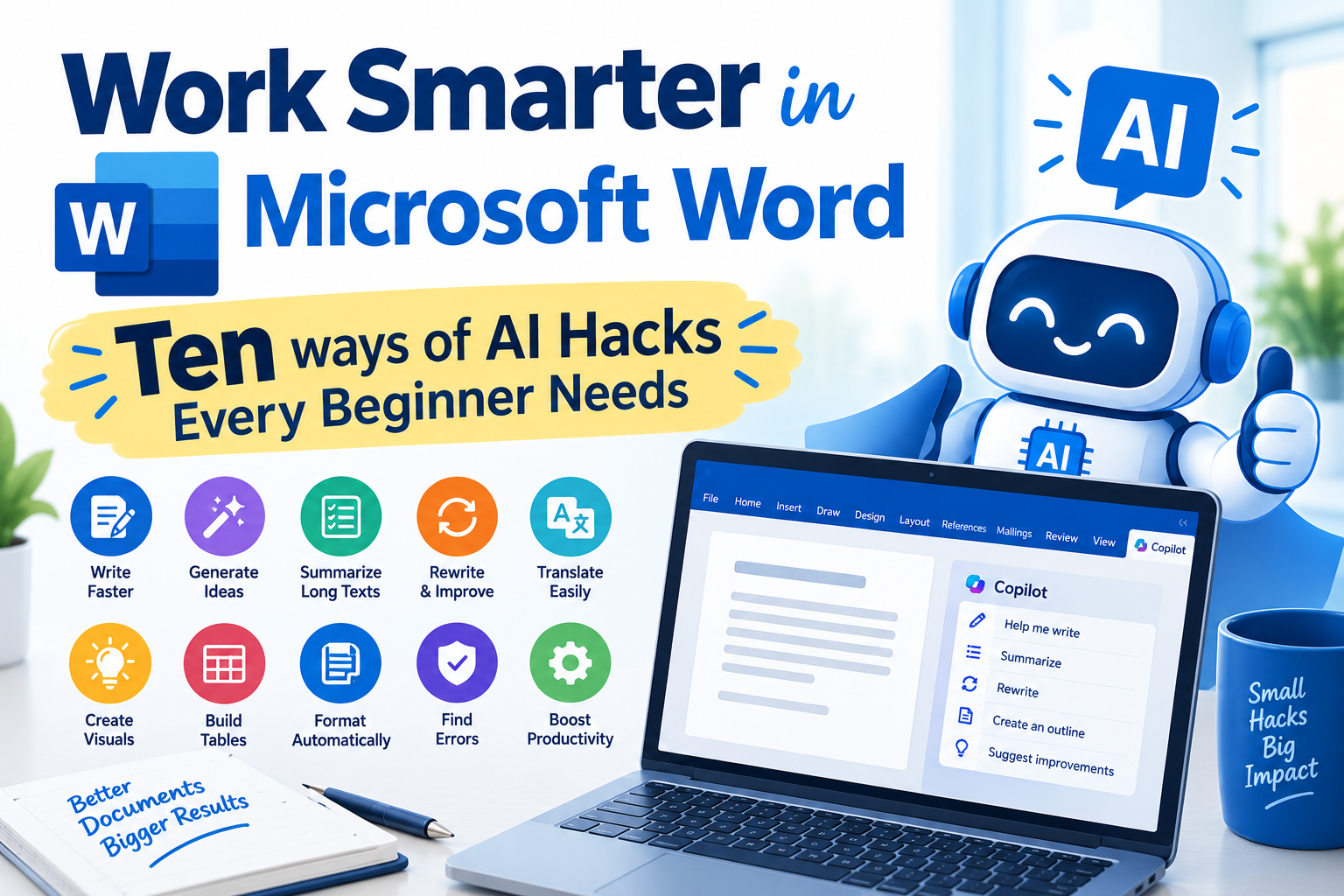
Work Smarter in Microsoft Word: Ten ways of AI Hacks Every Beginner Needs
Artificial Intelligence (AI) can turn Microsoft Word from a traditional word-processing application into a smart writing and document-production assistant. You can use it to draft faster, fix grammar, summarize a long document, organize your notes, and put together a report. Whether you can use it depends on your Microsoft 365 subscription, your license, and what your organization has enabled.
1. Create documents from scratch
Generate a first draft of a report, proposal, business letter, lesson plan, meeting agenda, or blog post from a short description.
“Draft a [document type, e.g., business proposal] on [topic] for [target audience]. Include sections for [Key Section 1], [Key Section 2], and [Next Steps/Conclusion], written in a [tone, e.g., professional/persuasive] tone.”
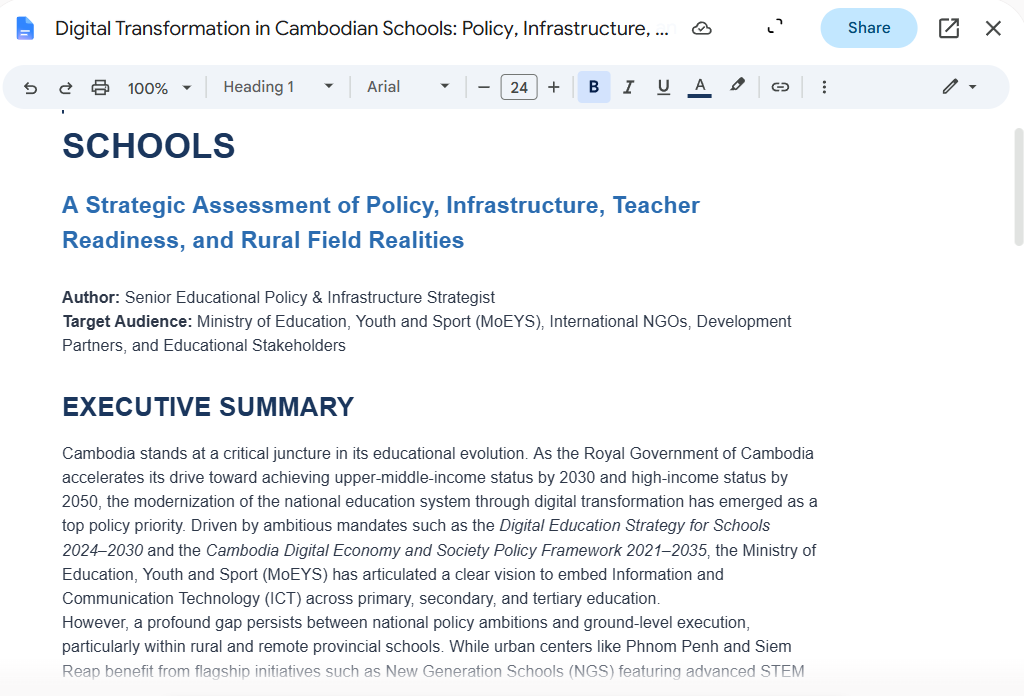
Example: “Draft a five-page report on digital transformation in Cambodian schools. Focus heavily on internet infrastructure, teacher training programs, and government policy. Include real-world challenges in rural provinces and actionable recommendations for international NGOs and educational stakeholders. Write in an authoritative, persuasive tone.”
2. Correct grammar and improve writing
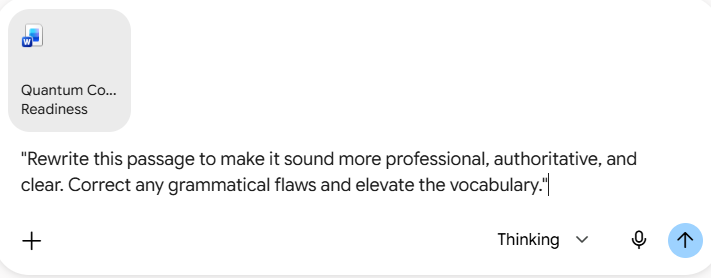
Identify language problems, improve sentence structure, remove unnecessary words, and make writing clearer and more professional. You can either copy and paste into AI prompt text or upload the whole document in order to ask for grammar correction or writing improvement.
3. Summarize long documents
Extract the main points, conclusions, recommendations, decisions, and action items from lengthy reports, policy, book, etc. Example: Summarize a 50-page strategy document into a two-page executive summary.
Prompt:
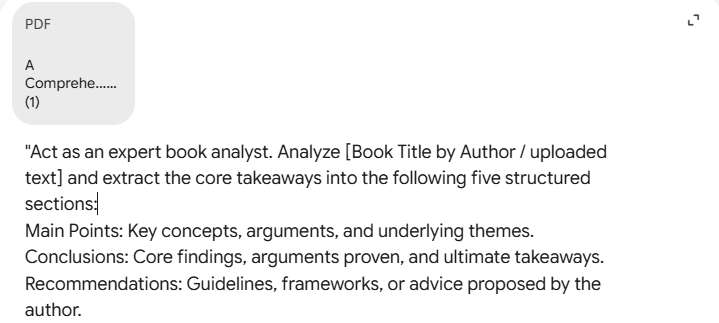
“Act as an expert book analyst. Analyze [Book Title by Author / uploaded text] and extract the core takeaways into the following five structured sections: Main Points: Key concepts, arguments, and underlying themes. Conclusions: Core findings, arguments proven, and ultimate takeaways. Recommendations: Guidelines, frameworks, or advice proposed by the author. Decisions: Critical decision criteria, strategic choices, or pivots discussed. Action Items: Practical, step-by-step actions the reader can implement immediately. Format the response using clear headings and bullet points for quick scanning.“
4. Organize and restructure content
Rearrange paragraphs, add headings, group related ideas, and turn suitable text into tables or structured sections. Sample prompt as below:
“Restructure this document: group related concepts together, logicalize the paragraph order, add bold section headings, and convert any comparisons or data-heavy lists into structured tables.”
5.Translate and adapt language
It can also translate text or adapt it for a different audience, make a complicated explanation easier to follow, and produce a bilingual first draft. Quality isn’t the same across languages, so have someone who reads Khmer check any Khmer text before you use it. You can try with this prompt:
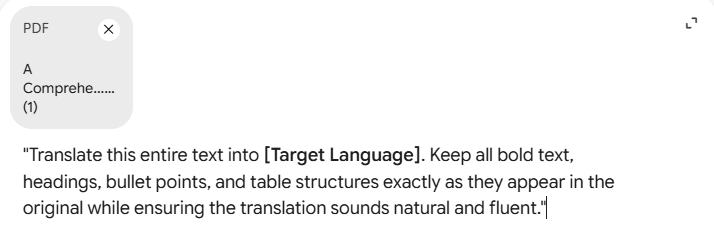
“Translate this entire text into [Target Language]. Keep all bold text, headings, bullet points, and table structures exactly as they appear in the original while ensuring the translation sounds natural and fluent.”
6. Text and Pagraph Formatting
Whether you are using Microsoft 365 Copilot directly inside Word or using an AI assistant (like ChatGPT/Claude) to generate Word-ready content or macros, using explicit and structured prompts ensures precise, professional formatting every time. Try the prompt as below:
“Reformat the entire document according to this master stylesheet:
- Callout Boxes: Light gray background fill (
#F2F2F2), 10.5pt italic text, with a 3pt left border in Navy Blue (#1F4E79).”* - Title: 24pt Arial, Bold, Navy Blue (
#1F4E79), Center-aligned, 12pt space after. - Heading 1: 16pt Arial, Bold, Navy Blue (
#1F4E79), Left-aligned, 12pt space before, 6pt space after. - Heading 2: 13pt Arial, Bold, Dark Charcoal (
#333333), Left-aligned, 10pt space before, 4pt space after. - Body Paragraphs: 11pt Calibri, Regular, Charcoal (
#222222), Left-aligned, 1.15 line spacing, 6pt space after. - Bullet Lists: Indented by 0.25 inches, 3pt space after each item.”
7. Convert text into tables
Transform suitable lists, descriptions, or comparisons into tables that are easier to read and analyze. Example: Create a table comparing cybersecurity risks, impacts, mitigation measures, and responsible units.
8. Support teaching and learning
AI can save teachers and lecturers time on teaching materials. It can produce a first draft of a handout, lesson plan, or worksheet, and it can reword the same content for students at different levels. The teacher then opens the draft in Word, checks it, and edits it to fit the class. Create lesson plans, learning objectives, assignment instructions, quiz drafts, rubrics, and study guides will be more convenient and save time.
Sample prompt:
Act as an experienced university lecturer. Create a lesson plan for a 3-hour class on Database Management Systems. Include learning objectives, key concepts, teaching activities, practical SQL exercises, required resources, assessment activities, and a summary. Organize the output into a professional table suitable for Microsoft Word.
9. Improve document presentation
AI can help clean up a rough Word document. It can suggest a better structure, rewrite headings, format tables, apply the same styles throughout, and get the file ready to print or share. A good-looking document isn’t much use if readers can’t follow it. What matters is that the document is clear, that headings and formatting stay consistent, that people can find what they need, and that it suits whoever is reading it. Help plan headings, section structure, tables, and consistent formatting. Some AI editing capabilities can apply changes directly, while other formatting tasks still require normal Word tools.
10. Extract decisions and action items
Identify tasks, responsibilities, deadlines, unresolved questions, and decisions from document content. Example: Convert workshop notes into meeting minutes and an action plan.