Is Windows Defender Good Enough in 2026? 7 Reasons You Don’t Need Third-Party Antivirus
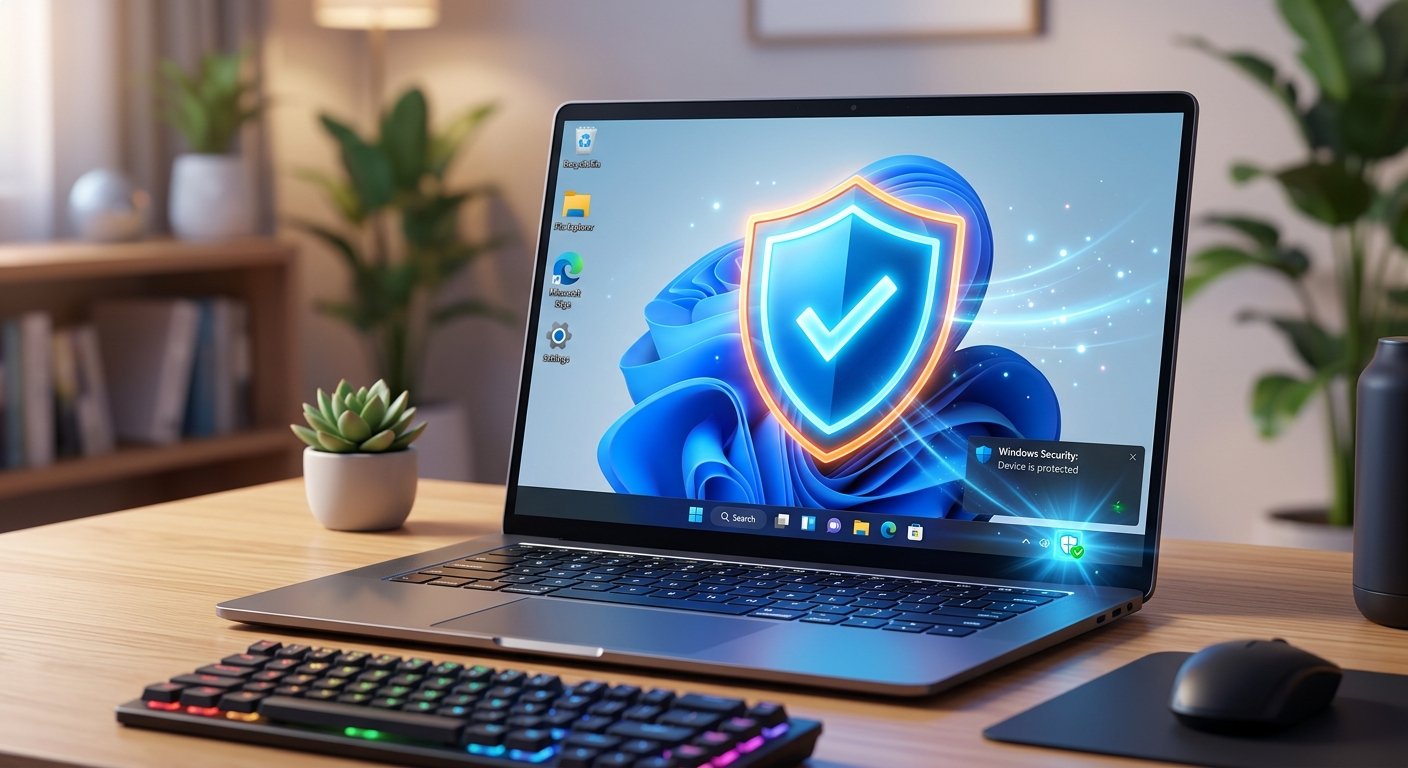
A new user who are buying Microsoft Window Product, please do not stress about installing a third-party antivirus. Windows 11 comes with Microsoft Defender, which many people still call Windows Defender. It has grown into a strong security tool in its own right.
Here are 7 reasons why you should stick with Windows Defender on Windows 11.
Top-Tier Antivirus Protection and It’s Completely Free (No Hidden Upsells)
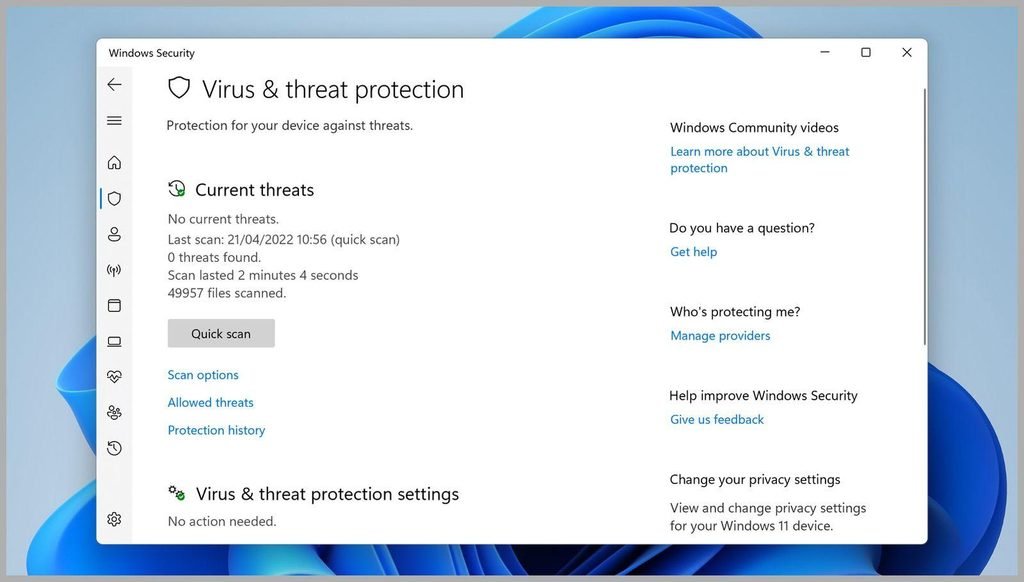
Most commercial antivirus programs start with a free trial, then charge around $90 a year for the useful features. Defender doesn’t. It’s part of Windows, it costs nothing, and it has never once asked me to upgrade. Microsoft Defender regularly scores well in tests run by independent labs like AV-TEST and AV-Comparatives. It uses machine learning, cloud-based threat intelligence, and behavior monitoring to catch malware, viruses, ransomware, and zero-day attacks as they happen.
Lightweight and Zero Bloatware
Some third-party antivirus programs slow a PC down, either by hogging memory or by dragging out boot times. Then they nag you to buy a VPN or a tune-up tool. Defender is part of Windows 11 and mostly stays out of the way. You may see CPU spikes during a full scan, and real-time protection does add some overhead.
Deep Integration with Windows 11
Because Microsoft builds both the operating system and the security software, Defender integrates seamlessly with Windows 11 features includes some features as below:
- SmartScreen: Scans web downloads and alerts you before running untrusted apps.
- Core Isolation & TPM 2.0 Support: Uses hardware-based security to prevent sophisticated attacks from tampering with your system kernel.
- Controlled Folder Access: Protects your valuable files from ransomware modification.
Seamless Updates via Windows Update
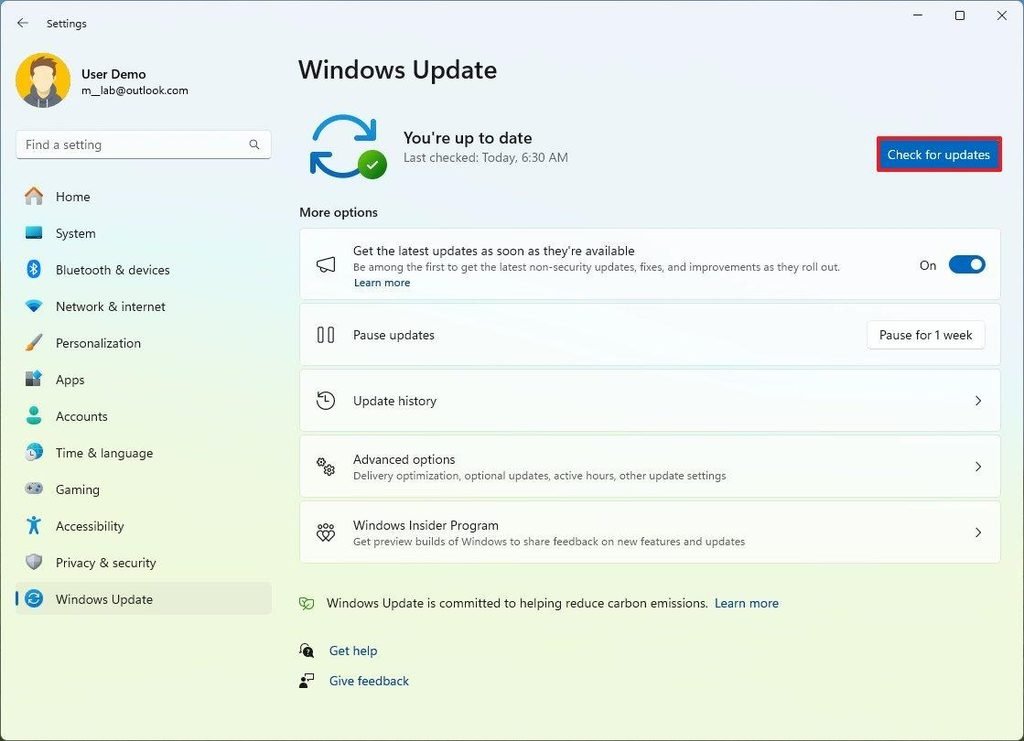
Defender handles that on its own. Updates come through Windows Update, so there’s no separate updater app to install or forget about. They also arrive on their own schedule, not just on Patch Tuesday, which is usually several times a day. The catch is that this depends on Windows Update working. If you’ve paused it or turned it off, Defender’s definitions go stale with everything else.
Built-in Ransomware Protection
As our previous post Ransomware Remains a Serious Enterprise Cybersecurity Threat in 2026 is still the big concern for SMEs and individuals who are connected to internet. Fortunately, Windows 11 includes a dedicated Ransomware Protection feature within Windows Security. You can enable Controlled Folder Access to prevent unauthorized applications from modifying or encrypting your documents, pictures, and desktop files. Plus, if you use OneDrive, Microsoft offers automated file recovery options in the event of an attack.
Zero Conflicts and Seamless Reliability
Ironically, a third-party antivirus can make a PC less stable. Two security programs both trying to hook deep into the system can cause crashes and blue screens, and one will sometimes flag the other as malware. Defender avoids the fight. When it detects another antivirus, it switches itself to passive mode so only one program is doing the real-time scanning. It’s not bulletproof, though. Windows Update can still fail, and when it does, Defender’s definitions go stale along with everything else.
Comprehensive All-in-One Security Suite
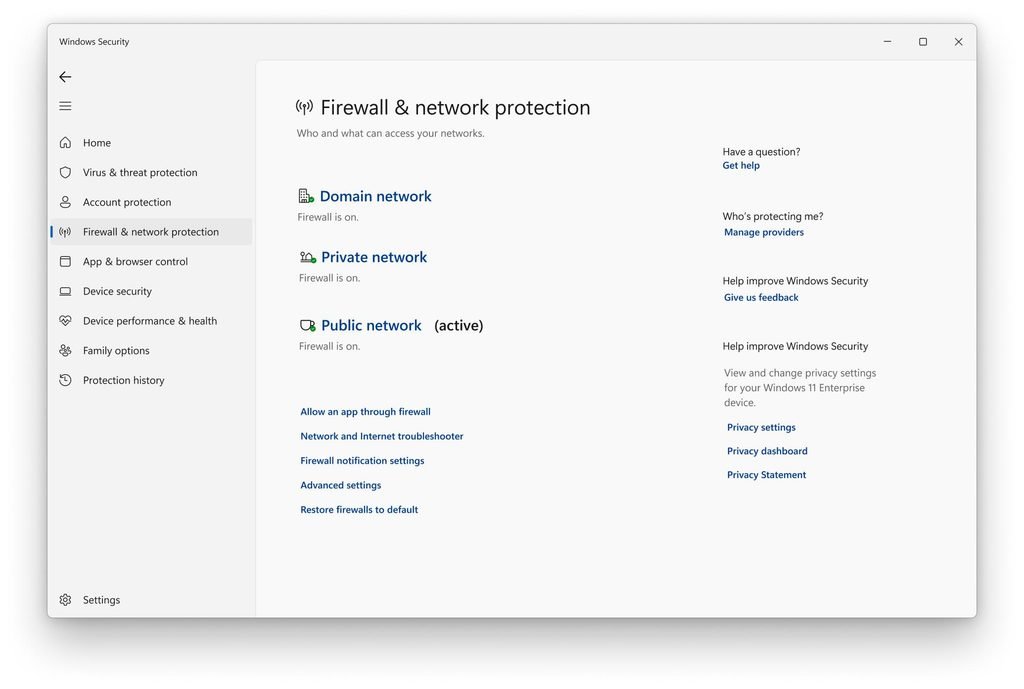
Windows Security is more than just an antivirus but it’s a centralized dashboard for your entire PC’s health and safety. Out of the box, it includes:
- Firewall & Network Protection: Guards against unauthorized network traffic.
- App & Browser Control: Protects against malicious websites and risky downloads.
- Device Health & Performance: Monitors system updates, storage capacity, and battery life.
- Family Options: Helps manage kids’ screen time and online activity.
For users in Cambodia, using built-in Microsoft Defender on Windows 11 is one of the smartest security choices you can make due to Low Resource Usage for Popular Laptops and PCs, Strong Defense Against Local USB Flash Drive Malware, Built-in Protection Against Financial & Telegram Phishing, etc. To do so, you have to follow this recommended setup and best practices as below:
- Enable Cloud-Delivered Protection: Go to Windows Security > Virus & threat protection settings and ensure Cloud-delivered protection and Automatic sample submission are toggled ON.
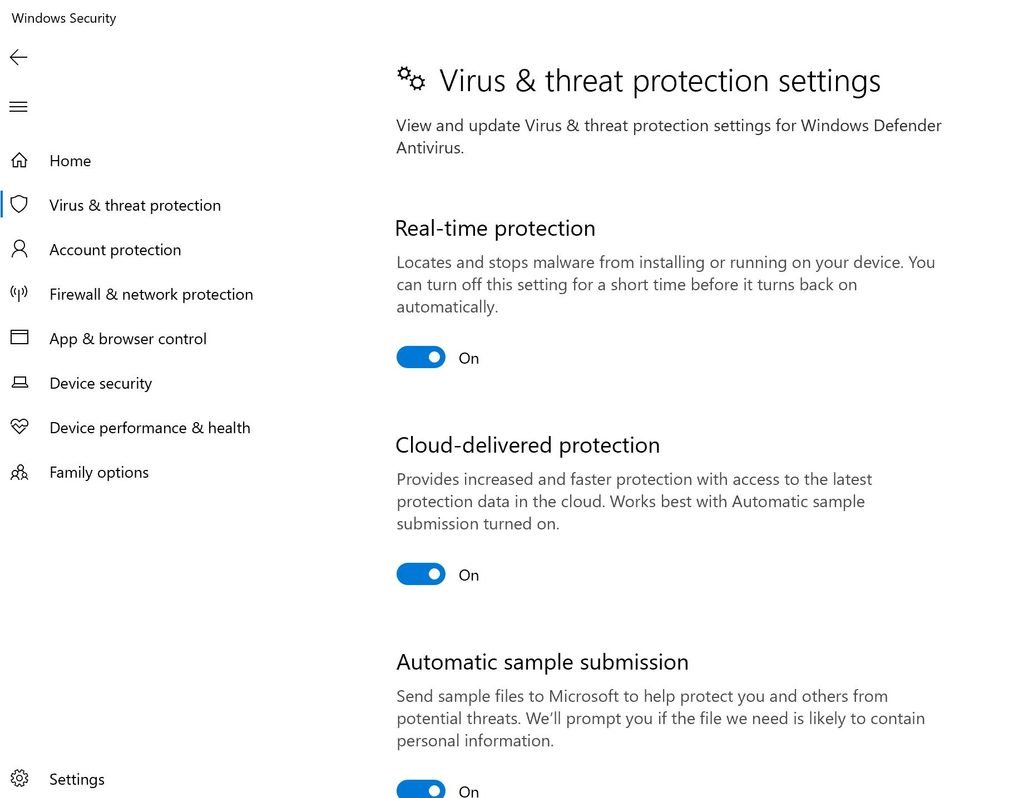
2. Turn On Controlled Folder Access: Protect your important work and school documents from ransomware by enabling Ransomware Protection in Windows Security.
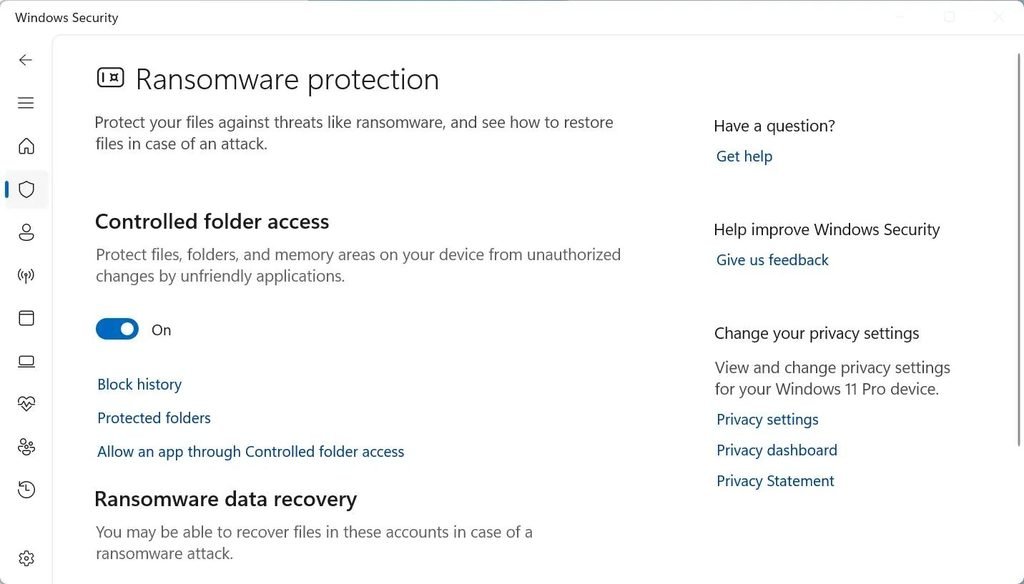
3. Use a Legitimate Windows 11 License: Ensure your Windows 11 OS receives official, automated security definitions through Windows Update.
4. Pair with Safe Habits: Combine Defender with multi-factor authentication (MFA/2FA) on your Telegram, ABA/Wing banking apps, and email accounts.
Official resource: Microsoft Windows Support.