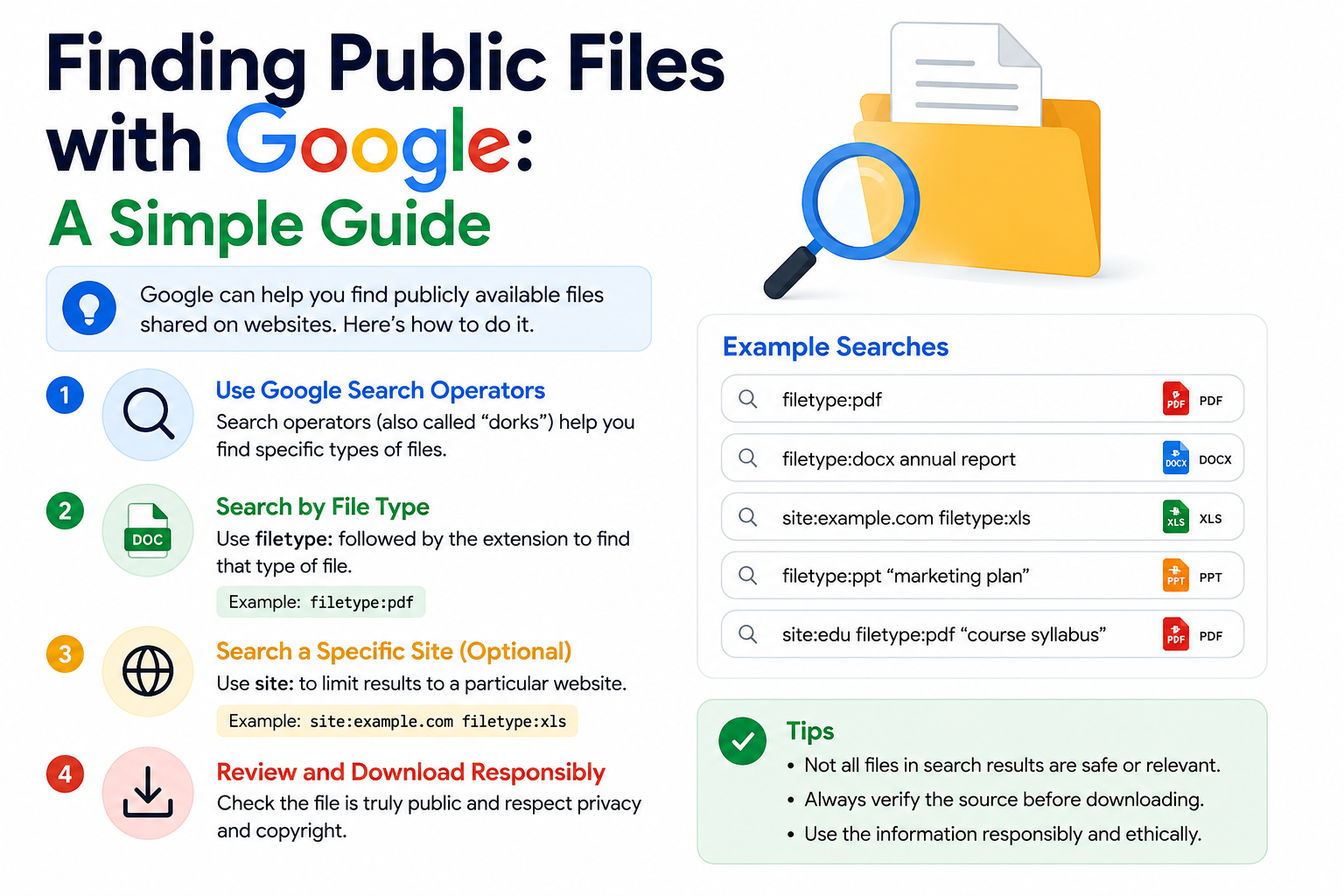
Finding Public Files with Google: A Simple Guide
Most people think of Google as a place to ask questions. But it’s also handy for something else: finding files people have put online without ever linking to them from an actual webpage. Old reports, forgotten guides, stray presentations stuff that’s technically public but nobody bothered to hide or promote.
What’s going on with website folders
Websites store files in folders, same as your laptop does. You almost never see these folders directly. You click a link, and the site shows you something designed a nice page with a layout. But every so often, a folder doesn’t have a page built for it. If the server hosting that folder isn’t configured to block this, it falls back to something pretty old-school: it just prints out everything inside, no styling, no menu, like a directory listing from 1998:
Index of /documents/

Parent Directory
Annual_Report_2025.pdf
Meeting_Notes.pdf
Presentation.pptx
Budget.xlsx
That’s the whole page. A list of files, and you can click straight through to download any of them.
That “Parent Directory” thing
It trips people up, but it’s simple and it’s not a file, it’s a link. Click it and you go up one level, into whatever folder contains this one. Like hitting “back” to see the bigger folder.
Why intitle:"index of" actually works
Google reads the title of every page it crawls, and these bare listing pages get titled almost the same way every time: “Index of /documents/,” “Index of /videos/,” and so on. So searching:
intitle:"index of"tells Google: show me pages with that exact phrase in the title. Add a word for what you want and you narrow things down fast. intitle:"index of" pdf turns up folders stuffed with PDFs. Swap in mp4 and now you’re looking at open video folders instead.
The library comparison, for what it’s worth
Picture a library where a librarian normally hands you what you ask for. Now picture a back room somewhere in that building, door left open, shelves fully stocked, nobody watching it. Anyone who wanders past can just walk in and take what they want. That’s roughly what these open folders are and Google’s just the map that shows you where the doors are propped open. It’s not picking any locks.
File type that can be looked for:
| File type | Usually is |
|---|---|
| Reports, manuals, books | |
| .mp4 | Videos |
| .mp3 | Audio |
| .zip | Downloadable packages |
| .jpg, .png | Images |
| .docx, .pptx | Documents, slides |
One thing worth knowing
This trick only shows you what’s already sitting out in the open and it doesn’t get around a password or break anything. But “publicly viewable” and “meant to be public” aren’t the same thing. Sometimes these folders are exposed by accident, because someone forgot to lock down a server setting, and now their files are just… findable, by anyone who knows this search trick.
This guide is meant for learning and understanding how search engines index websites, and why the people running those websites need to configure them carefully. If you stumble onto a folder that looks like it leaked by mistakes such as personal files, internal company documents, anything clearly not meant for strangers to see and don’t download it, don’t pass it around, don’t use it. And if it’s your own site, it’s worth double-checking every so often. This is a surprisingly common way for files to end up exposed without anyone meaning for it to happen.
Be careful what you click
Open directories aren’t moderated by anyone. Most of what you’ll find is exactly what it looks like: a stray PDF manual, an old academic paper, nothing sinister. But every so often someone dumps something nastier in there and dresses it up to look harmless. The easiest tell check the actual file extension before you open anything. A file named report.pdf.exe is not a PDF and that is .exe at the end means it’s a program and running it could install something you really don’t want on your machine. Keep your antivirus running, and if a filename looks even a little off, don’t click it.